Guides › Share & use your skin
How to put a custom skin in Minecraft Java & Bedrock
Choose Java or Bedrock on the Upload / Export page and download: a PNG for the Java launcher, or a .mcpack that Bedrock imports on phone, tablet and Windows.
3 min read · 4 steps · Beginner
Step 1: Pick Java or Bedrock and download
Open Upload / Export (or press Export in the editor). On the right, pick Java Edition or Bedrock Edition, check the file name, and press Download.
Java gets a PNG saved at 64×64 — the only size the Java launcher accepts, even if you painted in HD. Bedrock gets a .mcpack skin pack (up to 128×128).
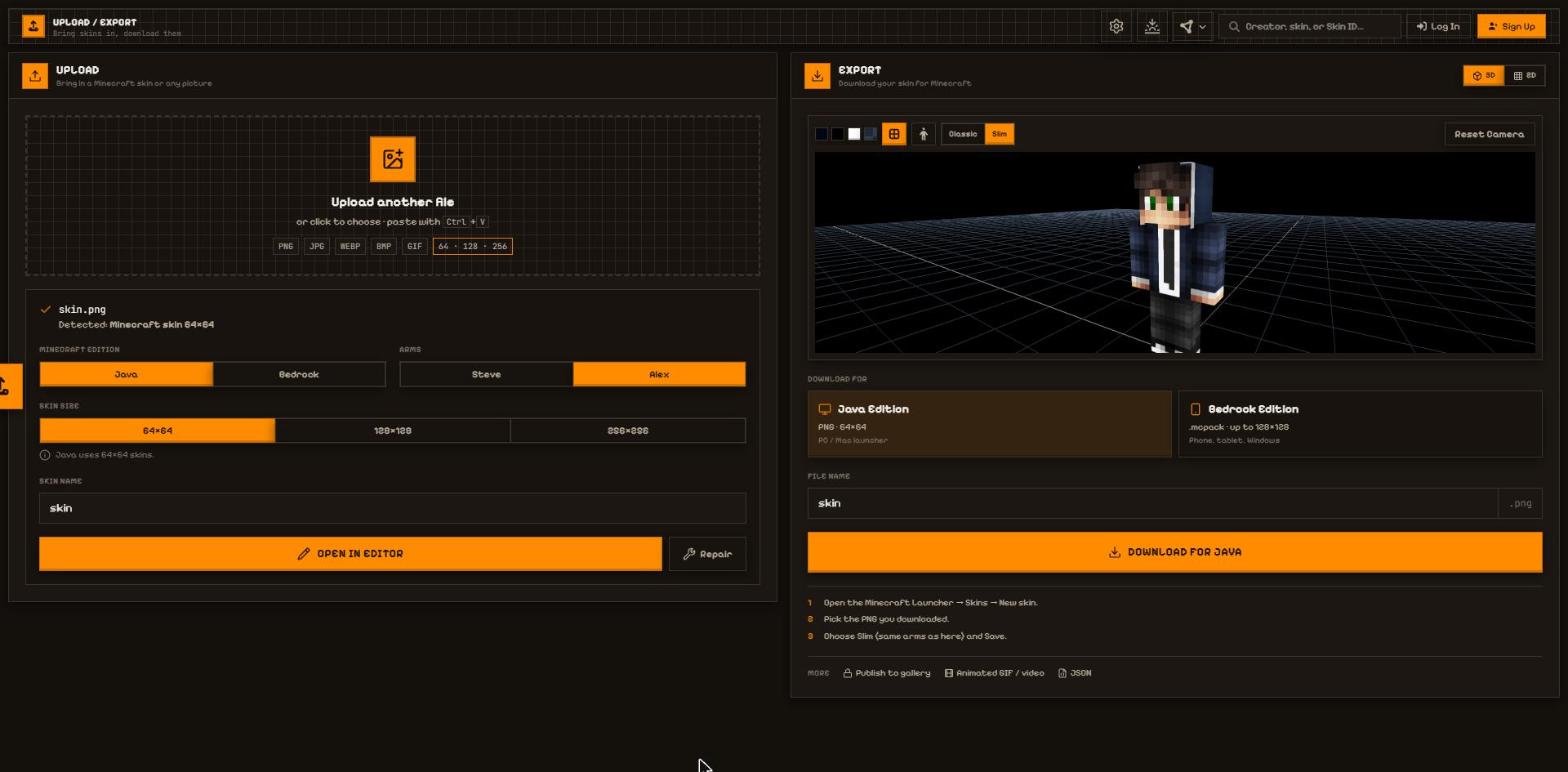
- Java Edition or Bedrock Edition.
- File name.
- Download.
Step 2: Java Edition
Open the Minecraft Launcher → Skins tab → New skin.
Pick the PNG you downloaded, choose Classic (Steve) or Slim (Alex) — the same arms you picked on the site — and press Save. The page shows these steps under the Download button.
- The 3 steps for the edition you picked.
Step 3: Bedrock (phone, tablet, Windows)
Open the downloaded .mcpack file — Minecraft opens and imports it.
Then in Minecraft go to Dressing Room → Classic skins and pick your pack and skin.
Step 4: More options
When you made a cape, Include my cape (above the download button) adds it: Java gives a .zip with the skin and the cape PNG (plus the moving GIF for a moving cape), Bedrock puts the cape inside the .mcpack (64×32).
The More row under the steps has Publish to gallery, Animated GIF / video (a walking, turning clip to share), Cape PNG, Moving cape GIF and Cape picture (your skin from behind wearing the cape — when you made one) and JSON (every pixel and its colour, for other tools). With Bedrock picked there's also PNG only.
Skin pack puts several skins into one Bedrock .mcpack: add the current skin, PNG files, Drafts or your saved skins, give each a name and Steve / Alex arms, order them, name the pack and download. In Minecraft they all show under Dressing Room → Classic skins → your pack.
Share link (also in the editor under Upload / Export) makes a short link that opens a copy of your skin straight in the MC-ENGINE editor — nothing is posted to the gallery. The link is copied for you; make a new one after you change the skin.
- Include my cape: Java .zip / inside the Bedrock .mcpack.
- More: Publish · Animated GIF / video · Cape PNG · Moving cape GIF · Cape picture · JSON · Skin pack · Share link.
More guides
- How to make a Minecraft skin GIF or video (4 ways)
- Share skins with the community
- Publish skins and manage My skins
- Your profile: photo, banner, links, badges and security
- Events: skin contests — enter, vote and win
- Favourites, collections, notifications, reports and the weekly leaderboard
Not an official Minecraft product. Not approved by or associated with Mojang or Microsoft.