Guides › Skin editor
Side panels: symmetry, drafts, history, templates, cape and more
Copy a limb to the other side, load starter skins and clothing, add face stamps, use a reference picture, find hidden pixels, adjust colours, keep drafts and make a cape.
7 min read · 7 steps · Intermediate
Step 1: Where the panels are
Scroll down the side panel of the editor. Every section opens and closes with a click on its name.
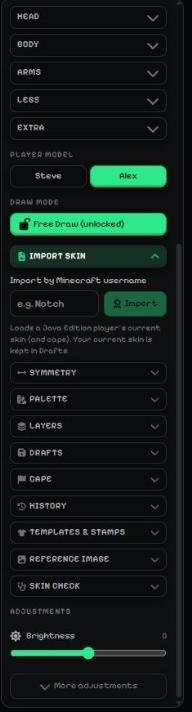
- Import skin: type a Minecraft Java player name and press Import to load their skin (and cape). Your current skin is kept in Drafts.
- Symmetry, Palette, Layers, Drafts, Cape, History, Templates & stamps, Reference image, Skin check.
- Adjustments: brightness and more for the whole skin.
Step 2: Symmetry: copy a limb
Painted one arm and want the other one the same? Open Symmetry, choose Base, Overlay or Both, then Right → Left or Left → Right for the arms or legs.
Flip part upside down turns the selected part over. Mirror X / Mirror Y are here too.
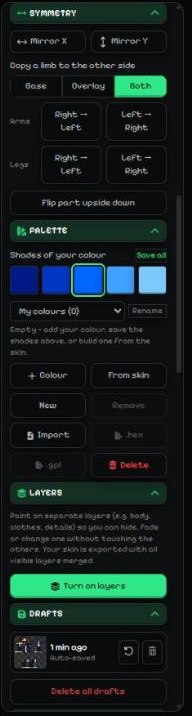
- The Symmetry panel.
Step 3: Templates & stamps
Character builder makes a whole skin from parts: skin tone, eyes, brows, mouth, extras (beard, glasses, freckles…), hair, hat, top, bottom and shoes — each in your own colour, with a live 3D preview and a Random button. Use this skin puts it in the editor (Undo brings your old skin back; it is kept in Drafts too).
Starter skins replace the whole skin with Starter Steve, Starter Alex or a Blank body. Starter Steve is the Steve skin with classic arms and Starter Alex the Alex skin with slim arms; each switches to its own model.
Clothing in your colour adds a T-shirt, long sleeves, hoodie, pants, shorts, shoes, belt, gloves or a cap — in your current colour.
Face stamps add eyes (Classic, Big, Anime, Happy, Sleepy, Glowing, Steve, Alex), mouths (including Steve and Alex), brows, hair (including Steve hair and the Alex fringe) and extras with one click. Extras → Steve face / Alex face puts their whole face on the head; the Steve and Alex stamps keep their own colours.
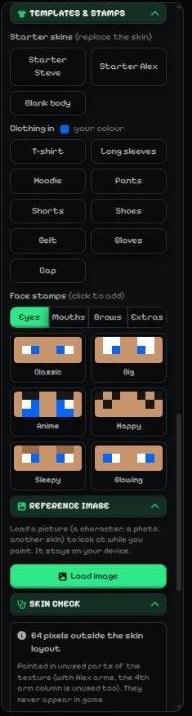
- Starter skins.
- Clothing in your colour.
- Face stamps: eyes, mouths, brows, extras.
- Reference image.
- Skin check.
Step 4: Reference image and Skin check
Reference image: press Load image to add a picture (a character, a photo, another skin) to look at while you paint. It stays on your device. Change swaps it and × removes it.
Choose where it shows: Here (in the panel), Floating (a small window over the corner of the canvas — works in 3D too; drag it to move, drag the corner to resize, or set Size) or Trace (laid faintly over the 2D texture so you can copy it; set how see-through with See-through).
Palette from this image turns the picture's main colours into a new palette — see the guide Image to colour palette.
Skin check lists what Minecraft will show differently from the editor, each with a one-click fix:
• See-through overlay pixels (half-transparent hat / jacket pixels): Make solid or Remove. • Holes in the base layer (they show up black in game): Fill from neighbours. • Pixels outside the skin layout (never shown in game): Clear them.
Show selects those pixels, so they light up on the 3D model and only they can be edited until you clear the selection. When everything is fine it says Looks good.
Step 5: Drafts, history and adjustments
Drafts: your skin is auto-saved as a draft. Click the restore arrow to go back to one (your current skin is kept as a draft too), or delete drafts you don't need.
History: every change shows up here; click a step to jump back to it. The first row goes back to before your first step. Undone steps stay greyed out — click one to redo up to there.
Adjustments: Brightness, Contrast, Saturation, Highlights, Hue, Shadows, Gamma and Invert Colors change the whole skin at once. Press More adjustments to see them all.
Step 6: Make a cape
Open Cape and press Make a cape (or Edit cape) to open the Cape editor. Paint on the flat picture or straight on the 3D model next to it — left mouse paints, right mouse turns, the wheel zooms; on a phone switch to 3D model, one finger paints and two fingers turn. Back / Side / Front turn the model for you.
Tools: Pencil, Eraser, Fill (stays inside one part), Pick a colour, Brush size and Undo. Zoom (1×–4×) makes the flat picture bigger. Only the outlined parts show in game: Outside, Inside, Edges, Top, Bottom and the Elytra. Same on both sides copies what you paint on the outside to the inside (flipped), and the other way round.
Cape size: 64×32 is the normal Minecraft size; 128×64, 256×128 and 512×256 are HD for finer detail (HD capes work in OptiFine-style launchers and mods; Bedrock packs and the 64×32 download get a shrunk copy). Switch any time — going smaller and back up brings the full detail back, with what you painted on top.
Start from gives a ready cape in your colour and your second colour: Solid, Gold trim, Stripe, Fade, Checker or Shaded.
Upload cape or picture loads a cape file or any picture — PNG, JPG or WebP up to 2 MB, GIF up to 5 MB. Crop it, choose where it goes (Whole cape file, Picture on the cape or Picture on the wings) and its size; ★ marks the most detail your crop has.
Moving GIFs: tick Keep it moving and the GIF plays on the cape or elytra in every 3D preview and in animated GIF / video exports. What you paint goes on every frame. Minecraft capes can’t move, so PNG downloads and packs use the first frame.
Download cape PNG saves 64×32 or a sharp HD copy (128×64 to 512×256 — the elytra is in the same file); a moving cape also has Moving GIF downloads. Show on the model hides or shows the cape and Remove cape deletes it. Vanilla Minecraft only shows official capes — custom capes work in launchers and mods that support them.
On Upload / Export, Include my cape adds it to the download: Java gives a .zip with the skin, the cape PNG (and the moving GIF), Bedrock puts it inside the .mcpack (64×32). More has Cape PNG, Moving cape GIF and Cape picture — your skin from behind wearing it.
Wear as: Cape / Elytra shows the same picture as a cape or as elytra wings — the wings use the Elytra part. Both wings share one picture, so painting one shows on the other (mirrored), like in Minecraft. Open wings spreads them so the inner side is easy to reach, and Copy cape design to elytra starts empty wings with your cape.
Step 7: Hair shading tip
In Templates & stamps, open Hair shading tip for a quick how-to: use 3 shades of one colour (light, middle, dark), light on top where light hits, dark at the tips and in thin 1–2 pixel strands.
The Shade tool (Darken / Lighten) or the Hair face stamps make the strands quickly. For 3D volume, paint a few hair pixels on the hat layer too.
More guides
- Minecraft skin editor tools explained (with shortcut keys)
- The top bar: 2D / 3D view, HD size, undo and model
- Minecraft skin layers: base, overlay (hat & jacket) and body parts
- Colours, brush size, opacity and palettes
- Image to colour palette: get the colours of any picture
- Make the editor yours: toolbar, tips, panels and layout
- How to make an HD Minecraft skin (128x128, 256x256 or 512x512)
- How to get a Minecraft skin from a username
- Minecraft skin template explained (64x64 layout)
Not an official Minecraft product. Not approved by or associated with Mojang or Microsoft.