Guides › Skin editor
How to make an HD Minecraft skin (128x128, 256x256 or 512x512)
Switch the editor to 128x128, 256x256 or 512x512 for more detail, paint or import in HD, and learn where HD skins work in Java and Bedrock.
3 min read · 3 steps · Beginner
Step 1: Pick the skin size
In the editor's top bar, click the size button (it shows 64×64) and choose 128×128, 256×256 or 512×512. Each body face now has 2×, 4× or 8× as many pixels across, so you can paint finer eyes, hair and clothes.
An HD skin file you upload keeps its own size (a 512×512 file opens as 512×512).
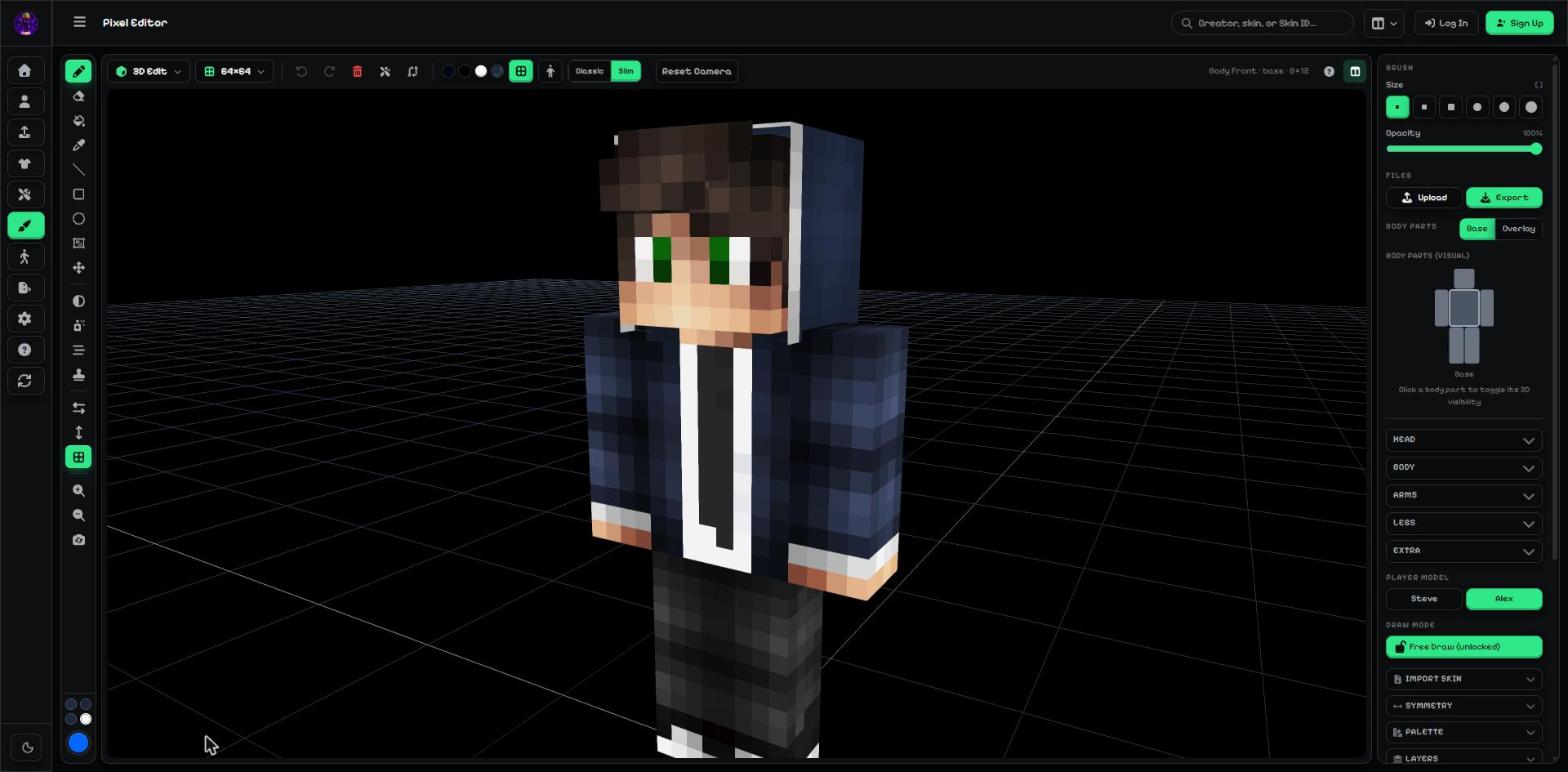
- Skin size: 64×64 (normal), 128×128, 256×256 or 512×512 (HD).
Step 2: Start an HD skin from a photo or picture
HD shines with pictures. In Repair → Photo to Skin, choose 128 or 256 under Model & size; the photo is redrawn at the new size, so the face keeps its detail.
In Repair, the 64 / 128 / 256 buttons do the same when you place each face from your own picture.
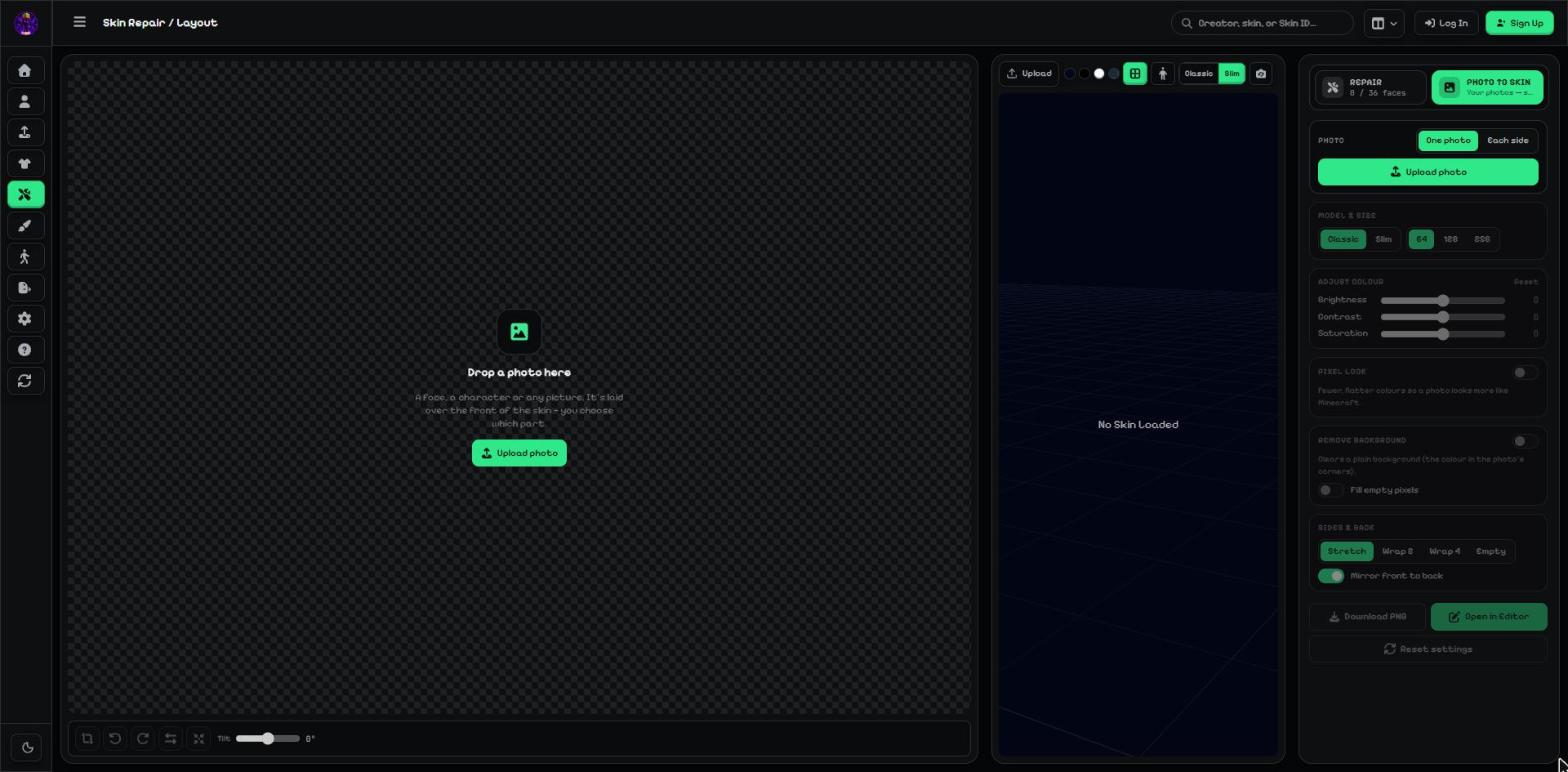
- Model & size: Classic / Slim and 64 / 128 / 256.
Step 3: Where HD skins work
Bedrock (phone, tablet, Windows) accepts 128×128 skins — download a .mcpack from Export.
Java only takes 64×64 skins in the official launcher. Keep a 64×64 copy for Java, or use HD in mods and launchers that support it.
512×512 is for mods and HD skin launchers, and for very fine detail while you paint. A .mcpack is saved at 128×128, and the gallery takes skins up to 100 KB.
Tip: Painting in HD but playing Java? Switch the size back to 64×64 before you export.
More guides
- Minecraft skin editor tools explained (with shortcut keys)
- The top bar: 2D / 3D view, HD size, undo and model
- Minecraft skin layers: base, overlay (hat & jacket) and body parts
- Colours, brush size, opacity and palettes
- Image to colour palette: get the colours of any picture
- Side panels: symmetry, drafts, history, templates, cape and more
- Make the editor yours: toolbar, tips, panels and layout
- How to get a Minecraft skin from a username
- Minecraft skin template explained (64x64 layout)
Not an official Minecraft product. Not approved by or associated with Mojang or Microsoft.