Guides › Skin editor
How to get a Minecraft skin from a username
Load any Minecraft Java player's current skin (and cape) by their username, then edit it, remix it or download it.
2 min read · 4 steps · Beginner
Step 1: Open Import skin
In the editor's side panel (on a phone: the More button), open Import skin.
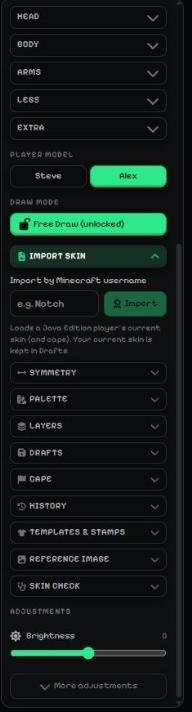
- Import skin: a box for the player name and an Import button.
Step 2: Type the player name and import
Type a Minecraft Java username (for example "Notch") and press Import. Their current skin — and cape, if they have one — loads into the editor.
The skin you were working on is kept in Drafts, so nothing is lost.
Tip: Only Java Edition names work here. Please only re-share someone else's skin with their permission — on MC-ENGINE, posting another person's skin as your own leads to a copyright strike.
Step 3: Skin history
Under the box, Skin history shows the skins MC-ENGINE has seen this player wear, newest first (the current one has a coloured border). Click one to load it.
Minecraft itself keeps no skin history, so the list starts the first time anyone looks the player up here, and grows each time they are looked up after changing skins.
Step 4: Edit, remix or download it
Change anything you like with the drawing tools, then press Export, choose Java or Bedrock and Download.
More guides
- Minecraft skin editor tools explained (with shortcut keys)
- The top bar: 2D / 3D view, HD size, undo and model
- Minecraft skin layers: base, overlay (hat & jacket) and body parts
- Colours, brush size, opacity and palettes
- Image to colour palette: get the colours of any picture
- Side panels: symmetry, drafts, history, templates, cape and more
- Make the editor yours: toolbar, tips, panels and layout
- How to make an HD Minecraft skin (128x128, 256x256 or 512x512)
- Minecraft skin template explained (64x64 layout)
Not an official Minecraft product. Not approved by or associated with Mojang or Microsoft.